Profiles
A profile describes how to load a page and extract data from it: the URLs it applies to, request settings, actions to run before or after extraction, and the elements to extract. Profiles can be attached to a collection as a default, or to an individual collection entry to override it.
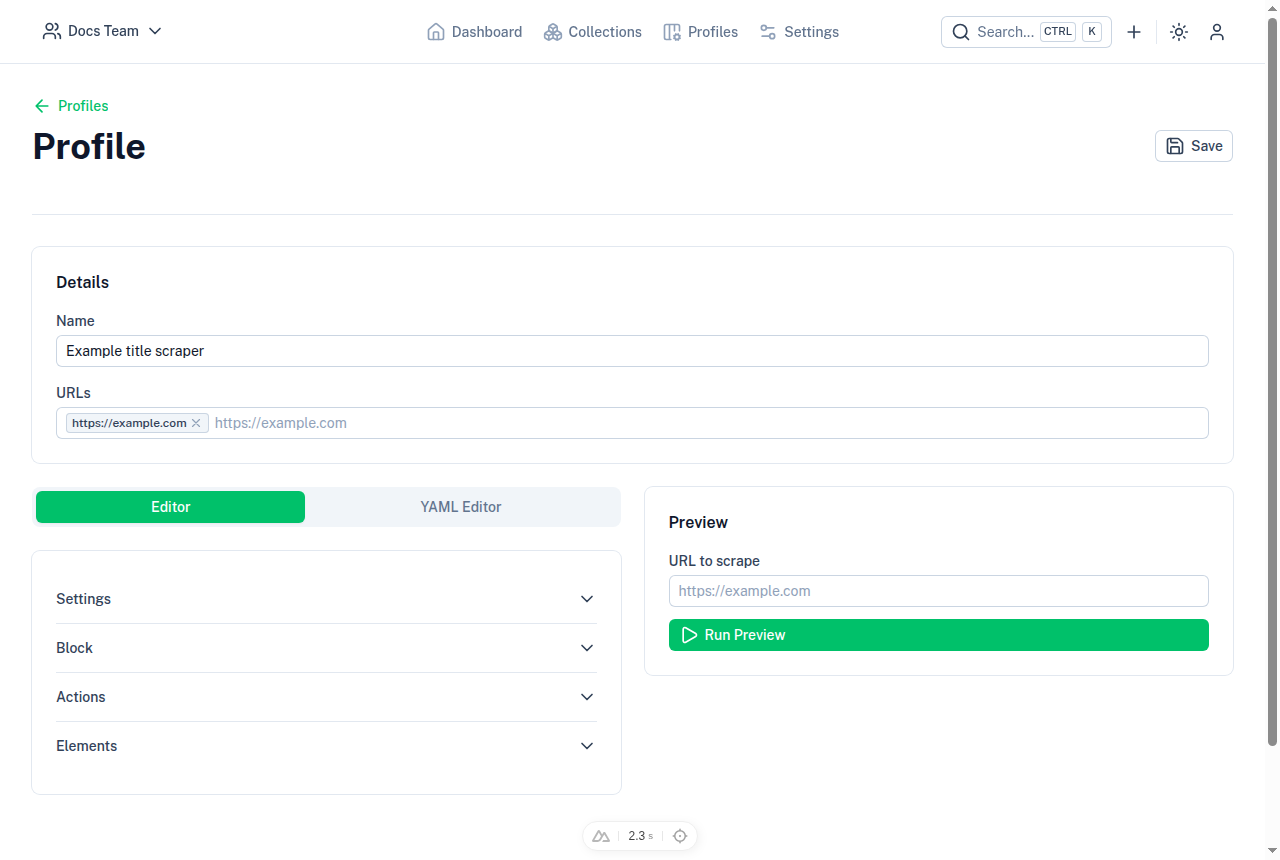
Fields
- Name — required, shown in the profiles list.
- URLs — optional list of URLs this profile is associated with.
- Settings — optional
proxyServerandtimeout, and adeleteVarstoggle for clearing intermediate variables after a run. - Block — optional URL/media patterns to block while loading the page (
ProfileBlockInput). - Actions —
before/afterarrays of actions to run around extraction (ProfileActionsInput). - Elements — the values to extract from the page: a
selector, aresultSelector, and optionaltransformsteps (ProfileElementsInput).
These fields mirror the zProfile/zProfileElement/zAction schemas documented in Schema — see
that page for the full shape and available transformers.
Editing a profile
A profile's page offers two ways to edit it:
- Editor — an accordion of form inputs, one section per field above.
- YAML Editor — the same profile as YAML, backed by a Monaco editor. Toggle Auto format to parse and apply changes as you type, or use Format & Apply to parse once and pretty-print the result. Copy YAML copies the current text to the clipboard.
name: Example profile
url: https://example.com
elements:
  - type: attribute
    name: title
    selector: h1.title
    resultSelector: 0.text
Use Run Preview to execute the profile against a URL and inspect the extracted result before saving.
Import and export
From the profiles list, Export downloads all of a team's profiles as a single profiles.yaml file, and
Import reads a YAML file in the same shape (a top-level profiles list) and creates or updates profiles by
matching on name.
Recording a profile
Rather than writing a profile by hand, you can record one by interacting with a page in the browser using the Profile Chrome Extension.