Profile Chrome Extension
The Profile Recorder is a Chrome extension (Manifest V3) that lets you record a profile
by interacting with a page directly in the browser, rather than writing the elements, actions, and selectors by
hand.
What it does
The extension opens as a side panel next to the page you're recording. As you select elements and interact with the
page, it builds up the same elements, actions, and block shapes used by @scrape-admin/schema,
so the recorded profile can be copied into the web app's YAML editor (or imported) without modification.
Installing from a ZIP
The extension isn't published to the Chrome Web Store yet. Until then, install it from a built ZIP as an unpacked extension:
- Download the extension ZIP and unzip it to a local folder.
- Open
chrome://extensionsin Chrome. - Enable Developer mode (top right).
- Click Load unpacked and select the unzipped folder.
After installing, pin the extension so its icon is visible in the toolbar, then open it from any page you want to record a profile for.
Creating a profile
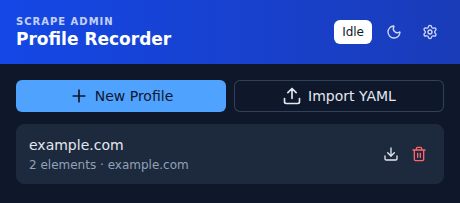
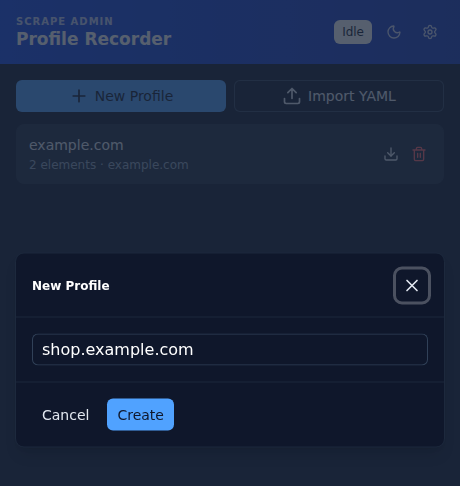
- Open the extension and click New Profile. The name field is pre-filled with the current tab's hostname, but you can change it.
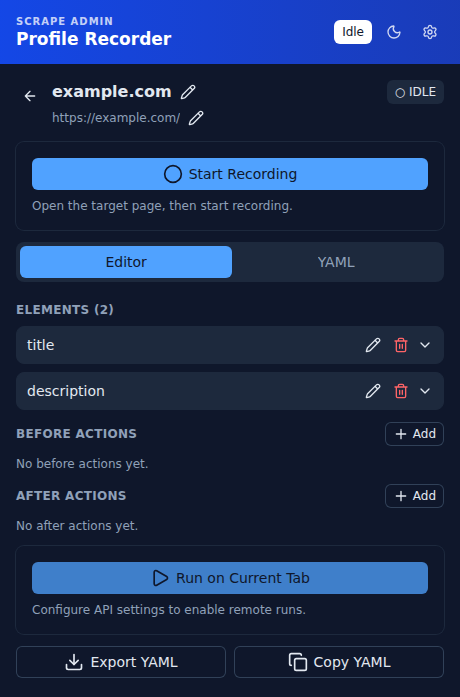
- Click Start Recording, then click elements on the page to capture them — each click opens a modal where you
set the element's name, selector, type (
attributeorvariable), result selector, and any actions to run on it. - Click Stop Recording when you're done. The profile can be exported as YAML or copied to the clipboard from the detail view at any point.
Editing a profile
Selecting a profile from the list opens its detail view, where you can rename it, change its URL, add or edit elements and their selectors/transforms (via the structured editor or the raw YAML tab), manage before/after actions, and export or copy the profile — without needing to re-record it from scratch.
Testing a profile against the API
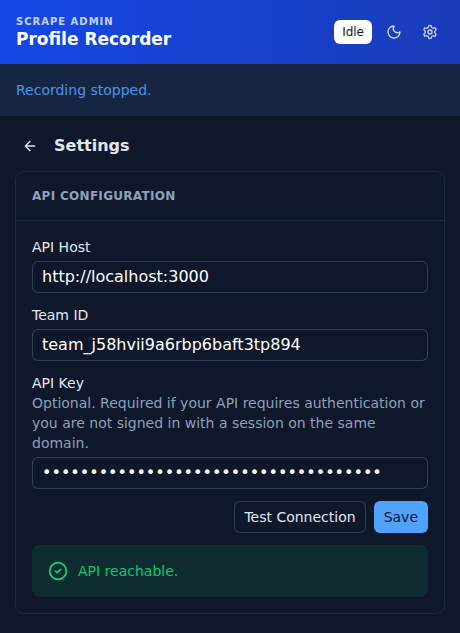
A recorded profile can be run against the real profiles run API directly from the extension, via Run on Current Tab on the profile's detail view. This requires the API to be configured first from the extension's Settings (gear icon):
- API Host — the URL of the
apps/webinstance to test against, for examplehttps://your-scrape-admin.example.com. - Team ID — the team the profile should be run under.
- API Key — optional. Only required if you aren't already signed in to that host in the same browser, or if the API otherwise requires authentication — if you have an active session from being logged in to the web app, it's used instead.
Use Test Connection to verify the host and team are reachable before running a profile.